



Tableau Cloud and Tableau Server can both schedule report delivery. In Tableau, this is called subscriptions - a built-in feature that emails a view or workbook as a PNG, PDF, or both after an extract refresh or on a set schedule. This guide walks through how to set them up, where native subscriptions fall short, and what to reach for when you need more.
Using subscriptions, you configure a recipient list, pick a format, set a cadence, and Tableau emails a snapshot after each extract refresh. For many teams, that covers the job.
The problem is that subscriptions only deliver flat images - PNG or PDF. If your team distributes reports in PowerPoint or slides, that means someone is still doing the formatting step manually. Native scheduling is the start of the answer, not the whole thing.
This guide covers how to set up native subscriptions, plus two options for when you need more: tabcmd and the REST API for custom export routing, and Rollstack for slide output with automatically refreshed data. Note: scheduled delivery requires Tableau Cloud or Server - Desktop has no native scheduling.
What are Tableau scheduled reports?
Tableau scheduled reports are automated deliveries of Tableau data to stakeholders on a set schedule, with nobody manually exporting or sending. It sounds simple, but "scheduling" in Tableau is actually a few different mechanisms that solve different parts of the problem:
- Subscriptions: Tableau Cloud/Server emails a view or workbook to recipients as a PNG image or PDF after an extract refresh runs.
- Extract refreshes: Scheduled jobs that pull fresh data from the source into Tableau's extract (.hyper) file. Subscriptions typically trigger after a refresh completes.
- Scripted exports: Using tabcmd or the Tableau REST API to programmatically export views on a schedule and route them wherever you need.
These handle different parts of the problem. Native subscriptions deliver PNG or PDF. The REST API can also export workbooks as .pptx, but those are static Tableau exports, not a branded template-driven presentation for multiple audiences. More on that distinction in Option 2 below.
The short version:
- Native subscriptions are the simplest option: zero additional setup, included with Tableau Cloud/Server licensing. Output is PNG, PDF, or both by email. No templated slide format, no live data.
- tabcmd / REST API adds flexibility: route exports to shared drives, apply filter parameters, export as .pptx. Requires scripting knowledge and maintenance. Still Tableau's own exports, not a branded presentation workflow.
- Rollstack connects Tableau to slide templates and delivers automatically refreshed PowerPoint or Google Slides decks on schedule, for teams where manual slide prep before exec meetings or client QBRs is the actual bottleneck.
Option 1: Tableau Native Subscriptions
How it works
Tableau Cloud and Server both include subscriptions, a built-in feature that emails a view or workbook snapshot to a recipient list after an extract refresh runs. No extra software or scripting required.
Setting up a subscription
- Open the view or workbook in Tableau Cloud or Server.
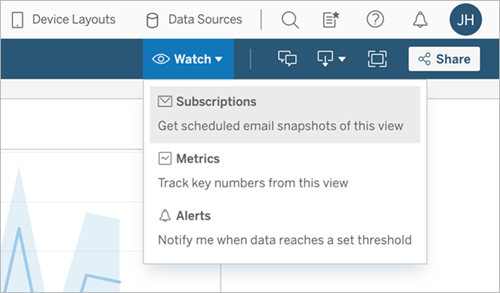
- Click the Subscribe button (envelope icon in the toolbar, or ... > Subscribe from the workbook menu).
- Set recipients. By default you're subscribing yourself. Site admins can add other users; on some server configurations, users with sufficient permissions can add others directly.
- Choose the delivery format: Image (PNG embedded in the email body), PDF (attached file), or both.
- Select a schedule. Two options: When Data Refreshes (subscription triggers after a qualifying extract refresh completes) or On Selected Schedule (choose from admin-configured schedules, typically hourly, daily, or weekly). Note that delivery time can vary under load.
- Optionally check When the extract refresh fails to receive failure alerts.
- Click Subscribe.
Connecting subscriptions to extract refreshes
Subscriptions send a snapshot of the data as it exists at delivery time, so freshness depends on when the extract last ran. To keep subscriptions current:
- The workbook should use an extract, not a live connection. Live connections may support subscriptions on some data sources but behavior varies.
- Set up an extract refresh schedule before configuring subscriptions. On Tableau Server, admins manage this under Admin > Schedules. On Tableau Cloud, it's under Data Sources > Edit Connection > Schedule.
- Schedule the subscription to trigger after the extract refresh completes, not before.
- On Tableau Cloud, refresh-triggered subscriptions are not supported for workbooks that connect through Tableau Bridge. If your data source uses Bridge, use On Selected Schedule instead of When Data Refreshes.
Admin prerequisites (Server)
If subscriptions aren't appearing as an option, a server admin may need to:
- Configure SMTP settings (Admin > General Settings > Email notifications). Without this, no subscription emails send at all.
- Enable subscriptions for the site (Admin > Site Settings > Subscriptions).
- Create at least one delivery schedule.
Common issues
- Subscribe option is missing: subscriptions are disabled for the site, or your license doesn't include them.
- Emails aren't arriving: SMTP isn't configured, or emails are hitting a spam filter. Whitelist your Tableau Server domain.
- Data looks stale: the subscription ran before the extract refresh finished. Switch to When Data Refreshes or adjust the scheduled subscription to run after the refresh window.
- Filters not applying in the subscription: ad hoc filters you've applied to a view don't carry into subscriptions automatically. Save the filtered state as a custom view first, then subscribe from that custom view.
- Adding external recipients: subscriptions are set up for Tableau users and groups. The email snapshot itself can be opened without signing in, but configuring the subscription requires the recipient to have a Tableau account.
- Subscription stopped sending: Tableau suspends subscriptions after repeated delivery failures. Check Admin > Subscriptions for suspended entries and reactivate them.
Pros
- No additional cost: subscriptions are included in Tableau Cloud and Server.
- Fast to set up: a few minutes in the UI, no code required.
- Consistent and reliable for basic delivery.
Cons
- Static output only. The PNG or PDF captures data at refresh time. If data updates more frequently than the extract schedule, the report may already be stale when it arrives.
- No PowerPoint or Google Slides output. If stakeholders need a formatted presentation, subscriptions don't deliver it.
- No template or branding control. What's in the workbook is what gets sent.
- No bursting. Every recipient gets the same view. Sending 30 client-specific variants from one workbook requires manual duplication.
Best for
The zero-friction starting point. If recipients just need a PDF or PNG in their inbox on a set schedule and they're already Tableau users, this covers it. Don't overthink it.
Option 2: tabcmd and the Tableau REST API
How it works
tabcmd is Tableau's command-line tool for interacting with Tableau Server and Cloud, including exporting views as PDF, PNG, or CSV. Wrapped in a cron job or Windows Task Scheduler, tabcmd scripts can run on any schedule you define.
The Tableau REST API offers similar capabilities with more granularity: authenticate via personal access token, download specific views with filter parameters applied, and push the output wherever you need: email, SharePoint, Google Drive, S3. REST API exports can also be triggered by external events rather than just a clock.
The basic setup:
- Authenticate to Tableau Server or Cloud using a personal access token.
- Call the
Export Viewendpoint to download the view as PDF or PNG, optionally with URL filter parameters for recipient-specific content. - Route the file: attach to an email, upload to SharePoint, drop in Google Drive.
- Run the script on a schedule via cron or Task Scheduler.
Note: tabcmd has full support for Tableau Server; some administrative commands are unavailable in Tableau Cloud, though export and content operations work in both. Review the tabcmd command reference before building a workflow around a command you haven't confirmed.
Pros
- Flexible output routing: exports can go to any destination your script can reach.
- Parameterized exports: apply filter parameters to generate different versions of the same view for different recipients.
- No additional cost: tabcmd and the REST API are part of the Tableau platform.
Cons
- Engineering time required. Writing, testing, and deploying these scripts takes real effort from someone comfortable with APIs.
- Scripts break. API versions change, access tokens expire, workbook changes silently break exports. Plan for maintenance.
- The REST API can export workbooks as .pptx, but these are Tableau's own exports, with each sheet rendered as a static image on a slide. PDF and PowerPoint exports also don't support certain extensions and Pulse objects, which can appear blank. It answers "get a PowerPoint file" but not "run a recurring, governed presentation workflow for multiple audiences."
- No governance layer: no audit trail, no locked templates, no version history.
Best for
If you have someone willing to own a script long-term and the output needs to go somewhere beyond email, this is the right tool. Be honest about the maintenance part before you commit.
If all you need is a scheduled PNG or PDF email, Tableau subscriptions cover it. If the real deliverable is a recurring board deck, QBR, or client-ready presentation that updates automatically in PowerPoint or Google Slides, that's where Rollstack fits. SoFi cut their reporting cycle from 6 hours to 45 minutes. See it in action →
Option 3: Rollstack for Tableau scheduled reports in slide format
How it works
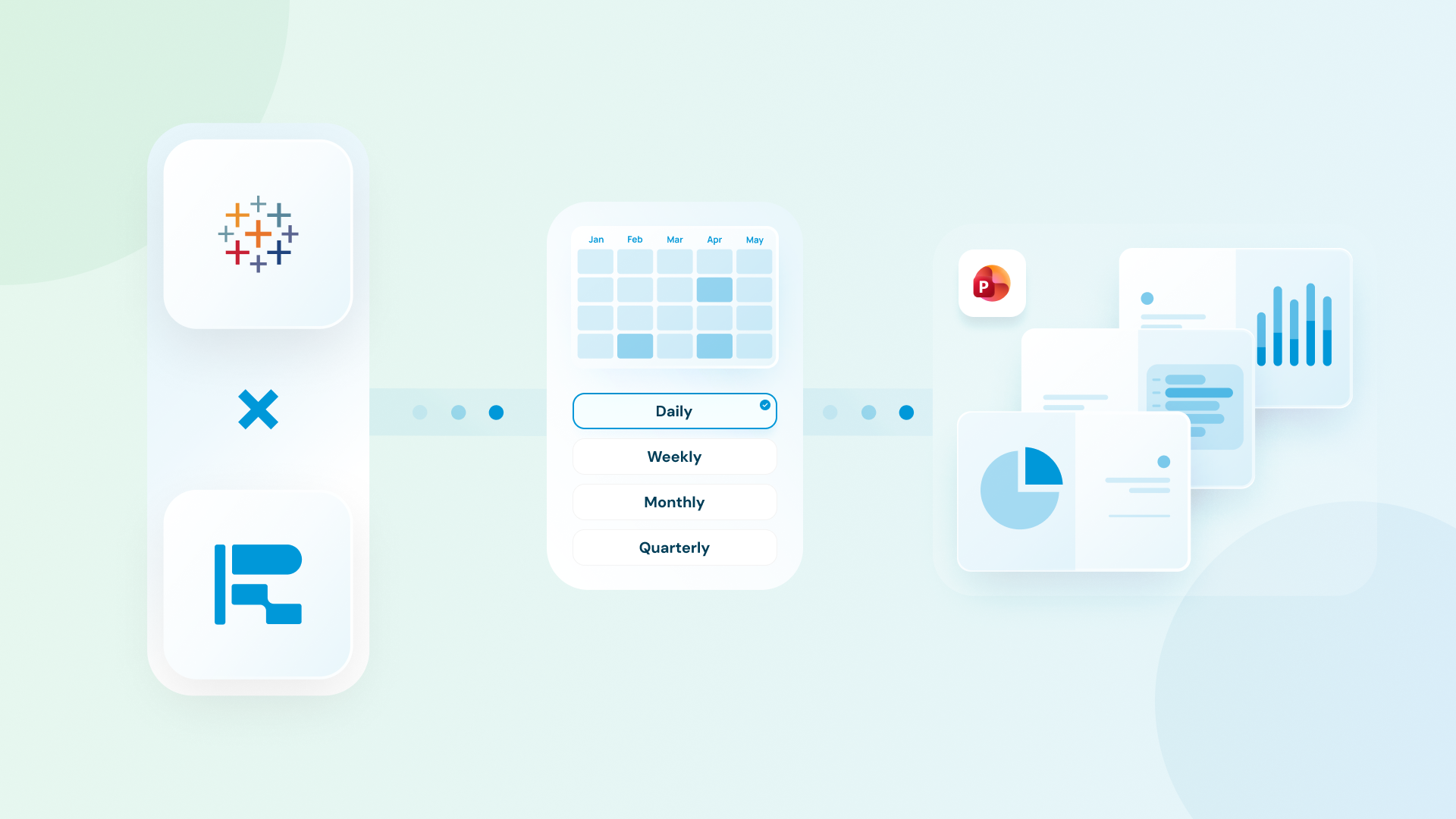
Rollstack connects directly to Tableau, maps live views to slide layouts in PowerPoint or Google Slides, and delivers updated presentations on a schedule. Stakeholders get a formatted slide deck with live data, not a screenshot in an email.
Setup steps:
- Connect Tableau: Rollstack links to Tableau Cloud or Server and pulls live data from your workbooks.
- Build a slide template: map specific Tableau views to placeholders in a PowerPoint or Google Slides template. Branding, layout, and any narrative text stay consistent across every delivery.
- Set the schedule: daily, weekly, monthly, or quarterly.
- Configure distribution: deliver via email, Slack, or push to a shared drive.
- Scale with Collections: generate N variants from one template, each populated with the right data slice and delivered to the right recipient, without duplicating workbooks.
This is the last mile of data delivery: the step between a working Tableau environment and the data actually reaching the people who need it.
Best use cases
- Executive reporting: weekly board decks built from live Tableau data, no manual slide prep.
- Client scorecards: one workbook generating 30 client-specific reports, each delivered on schedule.
- QBRs: decks that refresh automatically so the team isn't rebuilding slides the night before.
SoFi's data team cut slide prep for their finance and BI reviews from 6 hours to 45 minutes per cycle by pulling live Tableau data into their deck template via Rollstack. You can read the full details in our SoFi case study.
Pros
- Live data in slides. Presentations reflect current data at delivery time, not a snapshot from the last refresh.
- PowerPoint and Google Slides output, not PDFs or flat images.
- Report bursting: Collections handles N-variant delivery without duplicating workbooks or templates.
- Distribution built in: email, Slack, shared drives, no routing script needed.
- Governance: locked templates, version history, role-based access.
Cons
- Additional subscription cost. Rollstack is a separate platform on top of Tableau licensing.
- Template setup. It only takes a few minutes to map your Tableau views to slide layouts, but if it is a one-and-done presentation, it may be more than needed.
Best for
Teams running regular exec reporting or client scorecards, where the same structure repeats on a cadence and a stale deck or formatting error actually has consequences. If someone on your team is rebuilding slides before every board meeting or QBR and wondering why that's still a manual job, this is the answer.
Which option is right for your team?
Use native subscriptions if you need reliable PDF or PNG delivery on a fixed schedule and a formatted presentation isn't required. It won't impress anyone, but for straightforward internal reporting it works and costs nothing extra.
Use tabcmd or the REST API if you have engineering bandwidth, need to route exports beyond email (SharePoint, Google Drive, S3), or need parameterized exports for different filter combinations. Be honest about maintenance overhead before committing. Scripts that nobody owns become problems.
Use Rollstack if stakeholders need live data in a formatted slide deck, especially when the same report goes to multiple audiences in different variants. If the question is "why does someone have to rebuild this deck every single week" - that's the problem this solves.
Also worth reading: Tableau Automation Best Practices and Tools and the report bursting guide for teams managing high-volume delivery.
Frequently asked questions
Can Tableau schedule reports automatically?
Yes. Tableau Cloud and Tableau Server both support subscriptions: automated email delivery of a workbook or view as a PNG or PDF after an extract refresh. Tableau Desktop has no native scheduling; you need Server or Cloud.
Can Tableau send scheduled reports to PowerPoint?
Partially. Native subscriptions send PNG or PDF only. The Tableau REST API can export a workbook as a .pptx file, with each sheet rendered as a static image on a slide, though PDF and PowerPoint exports don't support certain extensions and Pulse objects. For a recurring, templated presentation with automatically refreshed data delivered to multiple audiences, you need a dedicated tool. Rollstack connects directly to Tableau and handles that workflow in PowerPoint or Google Slides on a schedule.
What is tabcmd in Tableau?
tabcmd is Tableau's command-line utility for interacting with Tableau Server and Cloud. It exports views as PDF, PNG, or CSV and handles various administrative tasks. Paired with a scheduler, it automates report exports, but requires scripting knowledge and ongoing maintenance. See the tabcmd documentation for the full command list.
Does Tableau have an API for scheduling reports?
Yes. The Tableau REST API lets you programmatically export views, manage workbooks, trigger extract refreshes, and more. It's more flexible than tabcmd but requires more setup and maintenance.
How often can Tableau send scheduled reports?
Native subscriptions run either when a qualifying extract refresh completes (When Data Refreshes) or on an admin-configured schedule (On Selected Schedule). Common options are hourly, daily, and weekly; Tableau Server admins can configure custom schedules. Precise delivery can vary under load. tabcmd and the REST API can be scheduled at any frequency your infrastructure supports. Rollstack supports daily, weekly, monthly, and quarterly delivery.
What's the difference between a Tableau subscription and a scheduled extract?
A scheduled extract refresh pulls fresh data from the source into Tableau's extract (.hyper) file. A subscription delivers a snapshot of that data, typically triggered after the refresh completes. They're related but separate: subscriptions depend on the extract being current.
Can I send different Tableau reports to different clients automatically?
Not with native subscriptions at any real scale. You'd need to duplicate workbooks or views for each recipient variant. Rollstack's Collections feature handles this: one template, parameterized per client, delivered to each recipient on schedule. See how to automate exporting Tableau graphs to PowerPoint for the manual equivalent.
Does Rollstack work with both Tableau Cloud and Tableau Server?
Yes. Rollstack integrates with both Tableau Cloud (formerly Tableau Online) and Tableau Server. You can also connect Tableau alongside other BI tools like Power BI, Looker, and Metabase in the same Rollstack workspace.
Conclusion
Tableau's built-in scheduling handles the easy case well. PDF or PNG, email delivery, fixed cadence. For straightforward internal reporting, subscriptions are fast to set up and cost nothing extra.
The ceiling shows up once stakeholders need a formatted deck, or the same report needs to go to 20 clients in 20 different versions. tabcmd and the REST API extend what's possible, but they hand the problem to your engineering team.
If manual slide prep is the real bottleneck (the thing eating hours before every board meeting or QBR), the right fix is connecting Tableau directly to the presentation layer and keeping it there. See how Rollstack handles it →, or check the Power BI scheduled export guide for the same comparison on the Microsoft side.
Still manually screenshotting Tableau views into PowerPoint?
Rollstack connects your Tableau data to PowerPoint, Google Slides and more, making it easy to automate reporting updates. Map your live Tableau views to slide templates, refresh charts on schedule, and deliver formatted decks to stakeholders automatically.


Ready to automate the last mile with Tableau?
See how teams connect Tableau reports to decks automatically. No screenshots, no manual assembly.


